Россия, р.п. Красные Баки

СДЕЛАЙТЕ СВОИ УРОКИ ЕЩЁ ЭФФЕКТИВНЕЕ, А ЖИЗНЬ СВОБОДНЕЕ
Благодаря готовым учебным материалам для работы в классе и дистанционно
Скидки до 50 % на комплекты
только до
Готовые ключевые этапы урока всегда будут у вас под рукой
Организационный момент
Проверка знаний
Объяснение материала
Закрепление изученного
Итоги урока
Была в сети 31.10.2026 19:58
Воронина Марина Владимировна
преподаватель английского и немецкого языка, преподаватель информатики
 91 619
 192

Местоположение
Специализация
Методические указания 3 курс 1 часть (ИСиП) 2025
Категория:
Английский язык
11.12.2025 14:21

Просмотр содержимого документа
«Методические указания 3 курс 1 часть (ИСиП) 2025»
МИНИСТЕРСТВО ЛЕСНОГО ХОЗЯЙСТВА
И ОХРАНЫ ОБЪЕКТОВ ЖИВОТНОГО МИРА НИЖЕГОРОДСКОЙ ОБЛАСТИ
Государственное бюджетное профессиональное
образовательное учреждение Нижегородской области
«КРАСНОБАКОВСКИЙ ЛЕСНОЙ КОЛЛЕДЖ»
(ГБПОУ НО «КБЛК»)
МЕТОДИЧЕСКИЕ УКАЗАНИЯ
по дисциплине «Иностранный язык
в профессиональной деятельности (Английский язык)»
для студентов III курса часть 1
Тема 6 Компьютеры и их функции
для специальности 09.02.07 Информационные системы и программирование
Составила:
преподаватель
иностранного языка
Воронина М.В.
Красные Баки
2025 год
Lesson 1
Data types and their processing
№1. Read, translate the text and write how you understand the term «data processing»:
The necessary data are processed by a computer to become useful information. In fact, this is the definition of data processing. Data are a collection of facts unorganized but able to be organized into useful information. Processing is a series of actions or operations that convert inputs into outputs. When we speak of data processing, the input is data, and the output is useful information. So, we can define data processing as a series of actions or operations that converts data into useful information.
The need for converting facts into useful information is not phenomenon of modern life. Throughout history, and even prehistory, people have found it necessary to sort data into forms that were easier to understand. For example, the ancient Egyptians recorded the ebb and flow of the Nile River and used this information to predict yearly crop yields. Today computers convert data about land and water into recommendations to farmers on crop planting. Modern computers are marvels of an electronics technology that continues to produce smaller, cheaper, and more powerful components.
Five basic operations are characteristic of all data processing systems: inputting, storing, processing, outputting, and controlling. They are defined as follows.
Inputting is the process of entering data, which are collected facts, into a data processing system. Storing is saving data or information so that they are available for initial or for additional processing. Processing represents performing arithmetic or logical operations on data in order to convert them into useful information. Outputting is the process of producing useful information, such as a printed report or visual display.
Controlling is directing the manner and sequence in which all of the above operations are performed.
№2. Answer the following questions.
1. What is processing?
2. What is data processing?
3. What does the term of data processing system mean?
4. What basic operations does a data processing system include?
5. What is inputting / storing / outputting information?
6. How did ancient Egyptians convert facts into useful information?
7. When were mechanical aids for computation developed?
№3. Find in the text English equivalents of the following words:
обработка данных; совокупность фактов; последовательность действий; преобразование входных данных в полезную информацию; включать ресурсы; завершить обработку данных; обеспечивать ввод информации в компьютер; нуждаться (требовать) в приспособлениях; явление современной жизни; на протяжении доисторического периода; регистрировать отливы и приливы; прогнозировать урожай зерновых культур; механические средства вычисления; ввод данных; хранение данных; первоначальная обработка данных; дополнительная обработка; выдача полезной информации; напечатанное сообщение; зрительное отображение
№4. Fill in the gaps with proper words.
1. Data are … of facts — unorganized but able to be organized into useful information.
2. Processing is a series of actions or operations that … inputs into outputs.
3. Today computers convert data about land and water into recommendations … on crop planting.
4. Modern computers are marvels of an electronics technology that continues to produce … … … components.
5. Inputting is the process of entering … , which are collected facts, into a data processing system.
6. Storing is saving data or information so that they are available for … or for additional … .
7. Outputting is the process of … useful information, such as a printed report or visual display.
8. Controlling is directing the manner and sequence in which all of the above operations … .
№5. Match the right and the left columns.
| 1. Computer | a) the set of instructions that direct the operations of computers; |
| 2. Computer literacy | b) a part of a computer, entering data into the device; |
| 3. A program | c) facts unorganized but able to be organized; |
| 4. Data | d) the output of a data processing system; |
| 5. Data processing | e) possessing sufficient knowledge of how computers work and what they can to use them as problem-solving tools; |
| 6. Input | f) a series of operations that results in the conversion of data system into useful information |
| 7. Output | g) an electronic device performing calculations on numerical data; |
| 8. Useful information
| h) an electronic device accepting the data processing results from the computer and displaying them; |
| 9. Data bank | i) a set of related files; |
| 10. Data processing | j) the resources required to accomplish the processing of data. |
№6. Find the best verb in the box to complete each of the sentences: process contribute, take (2), distribute, apply, make, run, access, involve
1. Many schools don’t … full advantage of the Internet.
2. The database allows you to … the sales figures in a number of ways.
3. Computers … data as it is received.
4. She managed to … a significant contribution to scientific knowledge.
5. It is important to … the exact dimensions of the room.
6. The job will … working with a software development team.
7. It was a real team effort — everyone managed to … something to the success of the project.
8. He wants a job in which he can … his foreign languages.
9. There are different ways you can use to … any program or application as an administrator in Windows.
10. They will … copies of the book free to each school in the district.
№7. Put the data processing steps into the correct order:
a) Gather the raw data which you want to process.
b) Arrange and systemise the data.
c) Clean the date and double-check for faults and inconsistencies.
d) Enter the date into a system.
e) Arrange the date into table format so that it can be analysed.
f) Create categories to organise the data into relevant groups.
№8. Match the headings to the data processing steps:
data coding
data collection
data entry
data sorting
data tabulation
data validation
a) Gather the raw data which you want to process.
b) Arrange and systemise the data.
c) Clean the date and double-check for faults and inconsistencies.
d) Enter the date into a system.
e) Arrange the date into table format so that it can be analysed.
f) Create categories to organise the data into relevant groups.
Lesson 2
Grammar exercises: Passive Voice
№1. Revise the material:

№2. Open the brackets using verbs in Present, Past or Future Simple Passive:
1. Bread (to eat) every day.
2. Nick (to send) to Moscow next week.
3. Mushrooms (to gather) in autumn.
4. I (to ask) at the lesson yesterday.
5. These trees (to plant) last autumn.
6. Many houses (to build) in our town every year.
7. This work (to do) tomorrow.
№3. Change the sentences in Passive Voice, paying attention to the place of the preposition:
E.g. We often speak about her. — She is often spoken about.
1. We thought about our friend all the time.
2. The doctor will operate on him in a week.
3. The teacher sent for the pupil's parents.
4. They looked for the newspaper everywhere.
5. Nobody slept in the bed.
6. The neighbour asked for the telegram.
7. Everybody listened to the lecturer with great attention.
№4. Open the brackets using verbs in Active or Passive Voice:
1. Nobody (to see) him yesterday.
2. The telegram (to receive) tomorrow.
3. He (to give) me this book next week.
4. The answer to this question can (to find) in the encyclopedia.
5. Moscow University (to found) by Lomonosov.
6. We (to call) Zhukovski the father of Russian aviation.
7. Yuri Dolgoruki (to found) Moscow in 1147.
№5. Change the sentences in Passive Voice:
1. He wrote this book in the 19th century.
2. We shall bring the books tomorrow.
3. They are repairing the clock now.
4. They sell milk in this shop.
5. I have translated the whole text.
6. They will show this film on TV.
7. When I came home, they had eaten the sweets.
8. They were playing tennis from four till five.
№6. Open the brackets using verbs in Passive Voice.
1. I am sure I (to ask) at the lesson tomorrow. 2. They told me that the new student (to speak) much about. 3. The hostess said that one more guest (to expect). 4. The newspaper said that an interesting exhibition (to open) in the Hermitage the next week. 5. This new dictionary (to sell) everywhere now. 6. All the texts (to look) through yesterday and not a single mistake (to find). 7. Two reports on Hemingway's stories (to make) in our group last month. Both of them were very interesting.
№7. Read the text and write out the sentences with Passive Voice, underlined the verbs:
These are scientists that made a significant contribution to the field and will be forever remembered for their work.
Alan Turing is an English computer scientist, widely considered to be the father of computer science. The prestigious “Turing Award” was named after him - an award given to those in computer science who make a significant contribution to the industry.
Tim Berners-Lee is the inventor of the World Wide Web and HTML. He was born in England and has an engineering background, through developing computer systems in the 80s. He is indeed a true pioneer in the field of Computer Science, and without Tim’s ideas and development work, we simply wouldn’t have the internet as we know it today.
Steve Wozniak, or “Woz”, is the co-founder and original programmer Apple. He was the technical genius behind the company, helping to orchestrate and build Apple products and services. He invented Integer BASIC, the BASIC interpreter used for the original Apple I and Apple II platforms.
Dennis Ritchie is the co-creator of the C Programming language, the underpinning language for many software systems. It is used in many different industries and has inspired a whole series of programming languages. The language is taught in computer science courses, inside Universities and educational institutions, is a foundational language for software developers.
Lesson 3
Input and output devices
№1. Read and translate the description of input devices:
A variety of input devices can be connected to a computer to allow the user to input different kinds of data and to control the computer in different ways. Some common input devices and their functions are shown in the tables below:
| Standard input device | |
| keyboard | Main input device controlling the computer and inputting text and numerical data. |
| Cursor control input devices | |
| mouse | Common input device for use with a graphical user interface. The mouse has a ball underneath that is rolled on a mousemat. |
| tracker ball | It is like a mouse turned upside down. The trackerball remains in one position while the user rotates a small ball on top. Often used instead of a mouse on portable computers. |
| joystick | A vertical lever allows the user to control the cursor precisely and at high speed. Particularly good for playing fast action games. |
| touch screen | The user interacts with the computer by lightly pressing their finger on a touch-sensitive area of the monitor screen. |
| Optical input devices | |
| light pen | It detects differences in reflected light. It can be used for drawing directly on the monitor screen or for reading printed optical characters or barcodes. |
| graphics tablet | Used with a lightpen for drawing. The user draws on the tablet with a lightpen as if they were drawing on a sheet of paper. |
| barcode reader | A special kind of lightpen for reading barcodes. Barcodes are used to identify items for stock control and pricing. |
| scanner | Used to input text and graphics from a printed page. |
| digital camera | Used to take pictures of an object. The picture is stored electronically and can be edited using a computer. |
| Voice input device | |
| microphone | Used to input sound. |
№2. Each text describes one of these devices: trackball, joystick, light pen, scanner. Identify the device each text describes. Write your answers:
1) A … is another input device you can connect to a computer system. The … is able to move in eight directions. …s are mostly used in computer games to control the way a picture on the screen moves. Sometimes two …s are connected to a computer so two people can play the game at the same time.
2) A … works in exactly the same way as a mouse, except that the ball is on top. The user rolls the ball around with her hand to operate it. If you use a …, you don’t need any extra space on your desk to move it around (like you do with a mouse). …s are often used on small portable computers and on some video game machines.
3) A … can be used to draw pictures directly on to a computer screen or to read the pattern on a barcode. A … that can read barcodes detects the difference between the light reflected from a black barcode line and its lighter background.
4) Using a …, you can input printed drawings, photographs, or text directly into a computer. A … works like a photocopier – a light is shone on the material and the … detects the reflected light. You can use a … with optical character recognition (OCR) software to input the scanned text into a word processing package.
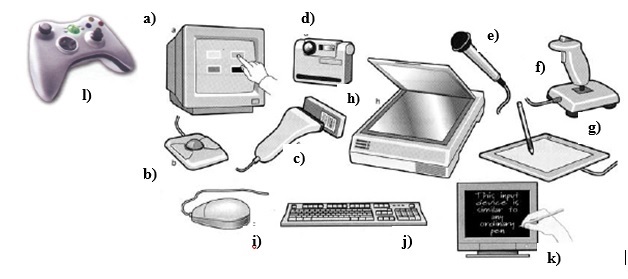
№3. Label the pictures of input devices (a-l) with their names (1-12).
| 1. joystick 2. trackball 3. keyboard | 4. barcode reader 5. scanner 6. mouse | 7. graphics tablet 8. touchscreen 9. lightpen | 10. digital camera 11. microphone 12. game controller |
№4. Label the picture of a standard keyboard with the groups of keys (1-5):
Cursor control keys include arrow keys that move the insertion point up, down, right and left, and keys such as End, Home, Page Up and Page Down, which are used in word processing to move around a long document.
Alphanumeric keys represent letters and numbers, as arranged on a typewriter.
Function keys appear at the top of the keyboard and can be programmed to do special tasks.
Dedicated keys are used to issue commands or to produce alternative characters, e.g. the Ctrl key or the Alt key.
A numeric keypad appears to the right of the main keyboard. The Num Lock key is used to switch from numbers to editing keys.

№5. Match the descriptions (1-8) with the names of the keys (a-h:
| A long key at the bottom of the keyboard. Each time it is pressed, it produces a blank space. It moves the cursor to the beginning of a new line. It is also used to confirm commands. It works in combination with other keys. For example, you press this key and C to copy the selected text. It removes the character to the left of the cursor or any selected text. It produces UPPER CASE characters. It produces UPPER CASE letters, but it does not affect numbers and symbols. It moves the cursor horizontally to the right for a fixed number of spaces (in tabulations and data fields). They are used to move the cursor, as an alternative to the mouse. | a arrow keys
b return/enter
c Caps Lock
d shift e tab f space bar
g backspace
h Ctrl |
№6. Read the text and answer these questions:
Displays, often called monitors or screens, are the most-used output device on a computer. They provide instant feedback by showing you text and graphic images as you work or play. Most desktop displays use Liquid Crystal Display (LCD) or Cathode Ray Tube (CRT) technology, while nearly all portable computing devices, such as laptops, incorporate LCDs. Because of their slimmer design and lower energy consumption, LCD monitors (also called flat panel or flat screen displays) are replacing CRTs.
Resolution refers to the number of dots of colour, known as pixels (picture elements), contained in a display. It is expressed by identifying the number of pixels on the horizontal and vertical axes. A typical resolution is 1024x768.
Two measurements describe the size of your display: the aspect ratio and the screen size. Historically, computer displays, like most televisions, have had an aspect ratio of 4:3 - the width of the screen to the height is four to three. For widescreen LCD displays, the aspect ratio is 16:9, very useful for viewing DVD movies, playing games and displaying multiple windows side by side. High- definition TV also uses this format. The viewable screen size is measured diagonally, so a 19" screen measures 19" from the top left to the bottom right. Inside the computer there is a video adapter, or graphics card, which processes images and sends signals to the monitor. CRT monitors use a VGA (video graphics adapter) cable, which converts digital signals into analogue signals. LCD monitors use a DVI (digital video interface) connection.
Colour depth refers to the number of colours a monitor can display. This depends on the number of bits used to describe the colour of a single pixel. For example, an old VGA monitor with an 8-bit depth can generate 256 colours and a SuperVGA with a 24-bit depth can generate 16.7 million colours. Monitors with a 32-bit depth are used in digital video, animation and video games to get certain effects.
The cathode ray tube of the monitor is very similar to that of a TV set. Inside the tube there is an electron beam which scans the screen and turns on or off the pixels that make up the image. The beam begins in the top left corner, and scans the screen from left to right in a continuous sequence, similar to the movement of our eyes when we read, but much faster. This sequence is repeated 50, 70 or 85 times per second, depending on the system. If the rate of this repetition is low, we can perceive a flickering, unsteady screen, which can cause eye fatigue. However, a fast-moving 75 Hz ‘refresh rate’ eliminates this annoying flicker.
What types of technologies do most desktop displays utilize?
What do CRT and LCD stand for?
How is the screen size measured?
Why are LCD monitors becoming more popular than CRT monitors?
What types of cables are commonly used to connect different kinds of monitors to computers?
№7. Read the text and complete the table below.
There are many different types of printer. These include dot-matrix, inkjet, mono laser, and dye sublimation printers. Basically, you get what you pay for. The more you pay, the better the printer.
Dot-matrix printers are the cheapest kind of printer, but their print quality is low and they are slow and noisy. They're cheap to run.
Inkjet printers are the cheapest, but their print quality is not as good as the other two types of printer. They are expensive to run compared to mono laser printers, but are able to print in colour. Inkjets are the noisiest of the three types of printer.
Mono laser printers are more expensive than inkjet printers but give you a better quality of black and white output. They cannot print in colour, but are the fastest type of printer and cost the least to run.
Dye sublimation printers are the most expensive type of printer, but their print quality is extremely high. They are quiet in operation, but are relatively slow and very expensive to run.
Notes: dye sublimation - термосублимационная технология

№8. Fill in the gaps in this comparison of printers:
There are three different types of printer: (матричный) …, (струйный)…, (лазерный)… (Матричные) … printers are the (cheap)… kind of printer. Their print quality is (low)… and they are (slow) … . The running costs are (cheap)… . (Струйные) … printers are (expensive) … than (матричные)… , but you get (good) … quality and (quiet) … operation than the former. However they are (expensive) … to run. (Лазерные) printers give the (good) … quality of output. They print (fast) … than either of the other two printers and it costs (little) … to run than an (струйный) … . Unfortunately, they cost twice as (much) … as an (струйный).
Lesson 4
Storage
№1. Read and translate the text:
Computer system architecture is organized around the primary storage unit because all data and instructions used by the computer system must pass through primary storage. Our discussion of computer system units will begin with the functions of the primary and secondary storage units. This leads to the examination of the central processing unit and from there to the consideration of the input and output units. Therefore, the sequence in which we'll describe the functional units of a digital computer is: 1) storage units, primary and secondary; 2) central processing unit; 3) input and output units.
As you know, there are primary and secondary storage units. Both contain data and the instructions for processing the data. Data as well as instructions must flow into and out of primary storage.
Primary storage is also called main storage or internal storage. The specific functions of internal storage are to hold (store): 1) all data to be processed; 2) intermediate results of processing; 3) final results of processing; 4) all the instructions required for ongoing process. Another name for primary storage is memory, because of its similarity to a function of the human brain. However, computer storage differs from human memory in important respects. Computer memory must be able to retain very large numbers of symbol combinations, without forgetting or changing any details. It must be able to locate all its contents quickly upon demand. The combinations of characters, that is, the letters, numbers, and special symbols by which we usually communicate, are coded. The codes used by computer designers are based upon a number system that has only two possible values, 0 and 1. A number system with only two digits, 0 and 1, is called a binary number system. Each binary digit is called a bit, from BInary digiT. As the information capacity of a single bit is limited to 2 alternatives, codes used by computer designers are based upon combinations of bits. These combinations are called binary codes. The most common binary codes are 8-bit codes because an 8-bit code provides for 2/8, or 256 unique combinations of l’s and 0’s, and this is more than adequate to represent all of the characters by which we communicate.
Data in the form of coded characters are stored in adjacent storage locations in main memory in two principal ways: 1) as "strings" of characters — in bytes; and 2) within fixed-size "boxes" — in words. A fixed number of consecutive bits that represent a character is called a byte. The most common byte size is 8-bit byte. Words are usually 1 or more bytes in length.
Secondary storage. Primary storage is expensive because each bit is represented by a high-speed device, such as a semiconductor. A million bytes (that is, 8 million bits) is a large amount of primary storage. Often it is necessary to store many millions, sometimes billions, of bytes of data. Therefore slower, less expensive storage units are available for computer systems. These units are called secondary storage. Data are stored in them in the same binary codes as in main storage and are made available to main storage as needed.
№2. Find the English equivalents of the following phrases in the text:
Функциональный блок; цифровой компьютер; устройство ввода; устройство управления; арифметико-логическое устройство; центральный процессор; структура компьютерной системы; первичное запоминающее устройство; вторичное ЗУ; рассмотрение; поэтому последовательность; оперативное ЗУ; внутренняя память; промежуточные результаты; подобие функции человеческого мозга; размещать содержимое по требованию; система счисления; двоичная система счисления; возможные величины; объем информации; двоичный код; смежные ячейки памяти; последовательность символов; быстродействующее устройство; полупроводник; доступный.
№3. Translate the following word combinations:
Storage: available storage; buffer storage; computer storage; data storage; magnetic disk storage; magnetic tape storage; input storage; intermediate storage; internal storage; laser storage; main storage; primary storage; secondary storage; sequential-access storage; variable storage; virtual storage.
Value: absolute value; acceptable value; additional value; binary value; byte value; character value; constant value; correct value; data value; digit value; discrete values; invalid value; negative value; numerical value; output value; valid value.
Digit: binary digit; binary-coded digit; check digit; information digit; input digit; nonsignificant digit; significant digit; digit-by-digit.
Sequence: out of sequence; alphabetic sequence; arithmetic sequence; binary sequence; character sequence; code sequence; instruction sequence; data sequence; digital sequence; historical sequence; increasing sequence; program sequence; string sequence.
№4. Find words in the text that are close in meaning to the words:
Memory; element; information; command; examination; character; quantity; number; place; computer architect; likeness.
To apply; to form; to move; to hold; to demand; to connect; to supply; to place; to name; to start; to examine.
Continuous; significant; consecutive; usual; enough; main; initial; general.
№5. Read the text and answer the questions:
Storage media are classified as primary storage or secondary storage on the basis of combinations of cost, capacity, and access time. The cost of storage devices is expressed as the cost per bit of data stored. The time required for the computer to locate and transfer data to and from a storage medium is called the access time for that medium. Capacities range from a few hundred bytes of primary storage for very small computers to many billions of bytes of archival storage for very large computer systems.
Memories may be classified as electronic or electromechanical. Electronic memories have no moving mechanical parts, and data can be transferred into and out of them at very high speeds. Electromechanical memories depend upon moving mechanical parts for their operation, such as mechanisms for rotating magnetic tapes and disks. Their data access time is longer than is that of electronic memories; however they cost less per bit stored and have larger capacities for data storage. For these reasons most computer systems use electronic memory for primary storage and electromechanical memory for secondary storage.
Primary storage has the least capacity and is the most expensive; however, it has the fastest access time. The principal primary storage circuit elements are solid-state devices: magnetic cores and semiconductors. For many years magnetic cores were the principal elements used in digital computers for primary storage. The two principal types of semiconductors used for memory are bipolar and metal-oxide semiconductors (MOS). The former is faster, the latter is more commonly used at present. Because data can be accessed randomly, semiconductor memories are referred to as random-access memory, or RAM.
There is a wide range of secondary storage devices. Typical hardware devices are rotating electromechanical devices. Magnetic tapes, disks, and drums are the secondary storage hardware most often used in computer systems for sequential processing. Magnetic tape, which was invented by the Germans during World War II for sound recording, is the oldest secondary storage medium in common use. Data are recorded in the form of small magnetized "dots" that can be arranged to represent coded patterns of bits.
Tape devices range from large-capacity, high-data-rate units used with large data processing systems to cassettes and cartridges used with small systems. Magnetic disk storage, introduced in the early 1960s, has replaced magnetic tape as the main method of secondary storage. As contrasted with magnetic tapes, magnetic discs can perform both sequential and random processing. They are classified as moving-head, fixed-head, or combination moving-head and fixed-head devices. Magnetic discs are the predominant secondary storage media. They include flexible, or floppy discs, called diskettes. The "floppies" were introduced by IBM in 1972 and are still a popular storage medium to meet the demands of the microcomputer market.
1. How are storage media classified?
2. How is the cost of storage devices expressed?
3. What is the access time for storage media?
4. How does the storage capacity range?
5. What are the two main types of storage devices?
6. What are electronic storage devices?
7. What are the principal primary storage circuit elements?
8. What are the main secondary storage devices?
9. What is the oldest secondary medium and when was it invented?
10. What is a floppy?
№6. Find the English equivalents of the following phrases in the text:
Запоминающие устройства; носители памяти; первичные ЗУ; вторичные ЗУ; время доступа; стоимость ЗУ; диапазон емкости памяти; архивная память; движущиеся механические части; вращающиеся магнитные ленты и диски; по этим причинам; твердотельные устройства; магнитные сердечники; полупроводники; оперативное ЗУ; аппаратное обеспечение вторичной памяти; звукозапись; намагниченные точки; представлять зашифрованную комбинацию единиц информации; в отличие от магнитных лент; последовательная и произвольная обработка; устройства с движущейся и фиксированной головкой; удовлетворять потребности; гибкий диск.
№7. Translate the words with their definitions:
bit - a binary digit used to represent the data in the computer.
nibble is defined as a group of 4 bits.
byte is a unit of digital information that consists of eight bits.
kilobyte is a unit for measuring the amount of information a computer can store, equal to 1024 bytes.
megabyte is a unit for measuring the amount of information a computer can store, equal to 1024 kilobytes
gigabyte is a unit for measuring the amount of information a computer can store, equal to 1024 megabytes.
terabyte is approximately one trillion (million) bytes or 1,000 gigabytes.
petabyte is approximately 1,000 terabytes or one million gigabytes.
download - to transfer data from the Internet to your device.
upload - to send data from your device to the Internet.
Lesson 5
Programming languages
№1. Read the text and answer these questions:
Unfortunately for us, computers can't understand spoken English or any other natural language. The only language they can understand directly is machine code, which consists of 1s and 0s (binary code).
Machine code is too difficult to write. For this reason, we use symbolic languages to communicate instructions to the computer. Machine code and assembly languages are called low-level languages because they are closer to the hardware. They are quite complex and restricted to particular machines. To make the programs easier to write, and to overcome the problem of intercommunication between different types of computer, software developers designed high-level languages, which are closer to the English language. Here are some examples:
FORTRAN was developed by IBM in 1954 and is still used for scientific and engineering applications.
COBOL (Common Business Oriented Language) was developed in 1959 and is mainly used for business applications.
BASIC was developed in the 1960s and was widely used in microcomputer programming because it was easy to earn. Visual BASIC is a modern version of the old BASIC language, used to build graphical elements such as buttons and windows in Windows programs.
PASCAL was created in 1971. It is used in universities to teach the fundamentals of programming.
C was developed in the 1980s at AT&T. It is used to write system software, graphics and commercial applications. C++ is a version of C which incorporates object-oriented programming the programmer concentrates on particular things (a piece of text, a graphic or a table, etc.) and gives each object functions which can be altered without changing the entire program. For example, to add a new graphics format, the programmer needs to rework just the graphics object. This makes programs easier to modify.
Java was designed by Sun in 1995 to run on the Web. Java applets provide animation and interactive features web pages.
1) How many high-level programming languages are represented in the text?
2) What programming languages do you know?
3) What are some of the best programming languages to learn?
4) What are their special features?
№2. Find in the text English equivalents of the following words.
машинный код, взаимодействовать, символический язык, программное обеспечение, языки высокого уровня, бизнес-приложений, ограничены конкретными машинами, преодолеть проблему, разработчики, современная версия, графический формат, включать
№3. Complete the sentences using the information from the text.
The only language they can understand directly is…… .
Machine code is too…… .
FORTRAN was developed ….. .
COBOL was developed …… .
PASCAL was created…. .
C++ is a version of … .
Java was designed by…
№4. Match the words to their definitions.
| 1. programming | basic language which consists of binary codes |
| 2. machine code | programming language such as C. Java or Visual BASIC |
| 3. assembly language | writing computer programs |
| 4. high-level language | low-level language translated into machine code by an assembler |
| 5. Java apples | software which converts a source program into machine code |
| 6. compiler | small self-contained program written in Java |
№5. Fill in the gaps with proper words.
Program____ programmers _____ programming ___ programmable
1. __________ is the process of venting a program using a computer language.
2. A computer _________ is a set of instructions that tells the computer how to do a specific task.
3. Most computer __________ make a plan of the program before they write it.
4. A _______ keyboard allows the user to configure the layout and meaning of the keys
Compile________ compiler________ compilation
5. Programs written in a high-level language require ________ - that is, translation into machine cone, the language understood by the processor.
6. A source program is converted into machine code by software called a ________
7. Programmers usually ______ then programs to generate an object program and
diagnose possible errors.
Bug ___debug ______ debugger _____debugging
8. Any error or malfunction of a computer program is known as a ________
9. A ________ is a program used to test and _____________ other programs.
10. The process of going through the code to identify the cause of errors and fixing them is called________.
№6. Translate into Russian
We use symbolic languages to communicate instructions to the computer.
The program is then translated into machine code by a piece of software called an assembler.
To make the program easier to write, software developers designed high-level languages.
Markup languages are used to create web-documents.
Markup tags are used to format and link text files.
Cabol (Common Business Oriented Language) was developed in 1959.
Pascal was created in 1971 and it is used in universities to teach fundamentals of programming.
Java was designed by Sun in 1995 to run on the web.
№7. Read the information how to write a program
I’d like to begin the course by giving you a very basic overview of the programming process. We'll then move to the details. So, to write a program, we normally follow these steps:
A program usually provides a solution to a given problem - for example, how to calculate wages and income tax in a big company. First of all, you have to understand exactly what the problem is and define it clearly. This means you have to decide, in a general way, how to solve the problem. The next step is to design a step-by-step plan of instructions. This usually takes the form of a flowchart, a diagram that uses special symbols to show how the computer works through the program - where it makes decisions, where it starts and ends, where data is input, things like that.
Next, you write the instructions in a programming language, like BASIC, Pascal or C. These computer instructions are called source code. Then you have to use a compiler, a special program that converts the source code into machine code - the only language understood by the processor, which consists of 1s and Os.
Once you've written the program, you have to test it with sample data to see if there are any bugs or errors. The process of correcting these errors is called debugging. Computer programmers have to find the origin of each error, write the correct instruction, compile the program again, and test it until it works correctly.
Finally, you have to write program documentation, a detailed description of how to use the program. A great program is not much good unless people know how to use it.
№8. Translate the words with their definitions:
processor - the main part of a computer that controls all the other parts
machine code - a set of numbers that gives instructions to a computer
binary code - a code that uses only the numbers 0 and 1
source code - the set of computer instructions that have been written in order to create a program or piece of software
flowchart - a diagram (= simple plan) that shows the stages of a process
application - a computer program that is designed for a particular purpose
graphics - images and designs used in books, magazines, websites, etc., especially ones produced on a computer
bug - a mistake or problem in a computer program
malware - software designed to harm or exploit devices; includes viruses and ransomware
Lesson 6
Portable computers
№1. Read the text and answer these questions:
When most people hear the word computer, they think of a personal computer such as a desktop or laptop. However, computers come in many shapes and sizes, and they perform many different functions in our daily lives. When you withdraw cash from an ATM, scan groceries at the store, or use a calculator, you're using a type of computer.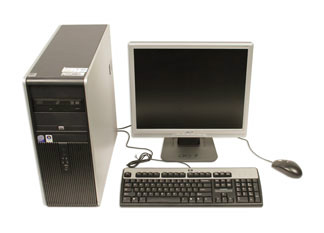
Many people use desktop computers at work, home, and school. Desktop computers are designed to be placed on a desk, and they're typically made up of a few different parts, including the computer case, monitor, keyboard, and mouse.
 Supercomputers are the world's largest and fastest computer system with the highest performance computing power vital to provide national security, industry, technology, science and improve everyday products, services, and processes.
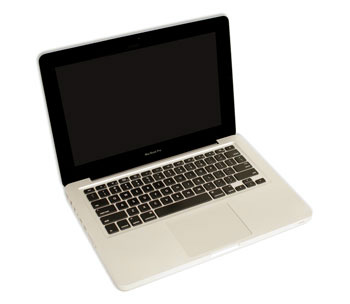
The second type of computer you may be familiar with is a laptop computer, commonly called a laptop. Laptops are battery-powered computers that are more portable than desktops, allowing you to use them almost anywhere.

Tablet computers—or tablets—are handheld computers that are even more portable than laptops. Instead of a keyboard and mouse, tablets use a touch-sensitive screen for typing and navigation. The iPad is an example of a tablet.
A server is a computer that serves up information to other computers on a network. For example, whenever you use the Internet, you're looking at something that's stored on a server. Many businesses also use local file servers to store and share files internally.
Many of today's electronics are basically specialized computers, though we don't always think of them that way. Here are a few common examples.
Smart phones: Many cell phones can do a lot of things computers can do, including browsing the Internet and playing games. They are often called smart phones.
Wearables: Wearable technology is a general term for a group of devices—including fitness trackers and smart watches—that are designed to be worn throughout the day. These devices are often called wearables for short.
Game consoles: A game console is a specialized type of computer that is used for playing video games on your TV.
TVs: Many TVs now include applications—or apps—that let you access various types of online content. For example, you can stream video from the Internet directly onto your TV.
1) What kind of computer do most people think about hearing the word “computer”?
2) Do many people use desktop computers only at work?
3) What type of computer is used for playing video games on your TV?
4) Do tablets or supercomputers provide national security, industry, technology, science and improve everyday products, services, and processes?
5) Is the iPad an example of a supercomputer?
6) Fitness trackers and smart watches are often called wearables for short, aren’t they?
№2. Find the equivalents to the following words and word-combinations from the text:
типы компьютеров, персональный компьютер, ноутбук, в нашей повседневной жизни, использовать калькулятор, настольный компьютер, портативный компьютер, планшеты, сенсорный экран, для внутреннего хранения и обмена файлами, специализированные компьютеры, позволяют получать доступ.
№3. Complete the sentences using the information from the text:
1. When you withdraw cash from an ATM, scan groceries at the store, or use a calculator, you're using … .
2. The second type of computer you may be familiar with is … .
3. … is an example of a tablet.
4. Many businesses also use local file servers to store and … .
5. … can do a lot of things computers can do, including browsing the Internet and playing games.
№4. Make up pairs of synonyms from the given words.
Verbs: to name, to complete, to calculate, to develop, to keep, to interpret, to communicate, to fulfill, to apply, to translate, to improve, to build, to call, to store, to communicate, to figure out, to perform, to use, to finish, to construct, to connect.
Nouns: speed, aim, storage, information, machine, significance, computation, data, device, rate, calculation, purpose, memory, importance
№5. Choose the most suitable word or phrase.
Nick is going to buy a new laptop / desktop PC that he can take to work.
A mainframe is more powerful than a supercomputer because it runs and supports more applications and users together / simultaneously.
A calculator / highways navigation in my smart phone allows me to find the way in an unfamiliar part of the city.
A supercomputer / desktop PC is the most powerful machine in the world.
№6. Read the text and answer the questions:
Portable computers have several advantages compared to desktop models:
Mobility: The ability to take the device anywhere: study, work, travels. Independence from a specific workspace and power outlet thanks to built-in batteries.
Compactness: Small size allows easy transportation even in backpacks or handbags. Takes minimal space both at home and in the office.
Performance: Modern notebooks offer high performance suitable for everyday tasks: working with office apps, movie streaming, music playback, web browsing; many models support medium-heavy gaming and resource-intensive programs (such as graphic design).
Battery Life: Best models achieve autonomy of 8–12 hours under active use. Suitable for long flights, trips, and intensive work outside the office.
Multifunctionality: A portable computer can replace several other devices simultaneously: phone, tablet, media player, video camera, game console.
Peripheral Connectivity: Most modern laptops feature USB-C ports, HDMI outputs, card readers, microphones, and cameras, which allow connecting external peripherals and accessories.
Thus, portable computers provide mobility, performance, and versatility necessary for today's lifestyle in almost any situation.
1) What are the main advantages of portable computers over desktop?
2) How does compactness contribute to the portability of laptop computers?
3) What daily activities are supported by modern notebooks?
4) What battery life do the best laptop models deliver during continuous usage?
5) What types of gadgets can a single portable computer substitute?
6) Has most modern laptops USB-S or USB-C ports?
7) Small size of gadgets allows hard transportation even in backpacks, doesn’t it?
№7. Write pairs of antonyms from the following words and translate them:
typical, danger, different, stationary, local, to delete, to remove, externally, access, to achieve, same, security, portable, to store, internally, to include, restriction, to fail, active, original, global, passive
№8. Are the sentences true or false? Correct the false sentences:
1) Modern notebooks offer low performance suitable for everyday tasks.
2) Many people use desktop computers at work, home, and school.
3) Best models achieve autonomy of 8–24 hours under active use.
4) Computers are even more portable than laptops.
5) Many cell phones can do many things computers can do, including browsing the Internet and playing games.
№9. Translate the words with their definitions:
supercomputer - a very powerful computer.
tablet - a small, flat computer that is controlled by touching the screen or by using a special pen.
laptop - a computer that is small enough to be carried around easily and is flat when closed.
wearables - things that can be worn, such as clothing or glasses, that contain computer technology or can connect to the internet.
desktop - a type of computer that is able to fit on the top of a desk.
Lesson 7
Computer functions
№1. Read the text, write out the 7-9 sentences with Passive Voice and translate them:
Computers are incredibly versatile machines that can perform a wide range of tasks. These tasks are made possible by the four basic functions of a computer: input, processing, output, and storage. Each of these functions is essential for the computer to operate correctly and perform useful tasks. Whether you’re writing an email, playing a video game, or managing spreadsheets, these fundamental functions enable the processing and output of data that makes computers invaluable in our daily lives.
The input function is the process by which a computer receives data and instructions from the outside world. This is achieved through input devices such as keyboards, mice, scanners, and microphones. When you type on a keyboard or click with a mouse, you are providing input to the computer. This input data is then sent to the computer’s central processing unit (CPU) for further processing.
The processing function is carried out by the CPU, which is often referred to as the “brain” of the computer. The CPU takes the input data and performs various operations on it based on the instructions provided. These operations may include calculations, data manipulation, and decision-making. The CPU processes the input data at incredibly high speeds, allowing the computer to perform complex tasks within milliseconds. Modern computer systems have evolved to use CPUs and GPUs together, known as APUs (Accelerated Processing Units). This integration enhances performance and efficiency, handling tasks from everyday applications to complex graphical rendering and parallel processing more effectively.
Once the data has been processed, the computer needs to present the results to the user. This is where the output function comes into play. Output devices such as monitors, printers, and speakers are used to display or produce the processed data in a human-readable form. For example, the text you see on your screen or the sound you hear from your speakers are results of the output function. Output makes it possible for users to see, hear, and interact with the results of the computer’s processing.
The storage function deals with saving data for future use. Computers have both temporary (RAM) and permanent (hard drives, SSDs) storage devices. Temporary storage, or memory, holds data that the CPU needs while performing tasks, but this data is lost when the computer is turned off. Permanent storage, on the other hand, retains data even when the computer is powered down. This allows users to save their work, install software, and store important files for future access.
Storage can be broadly categorized into two main types: temporary (volatile) memory and permanent (non-volatile) storage.
№2. Find in the text the English equivalents for the following:
универсальные машины; ввод, обработка, вывод и хранение данных; необходима для правильной работы; электронное письмо; из внешнего мира; печатаете на клавиатуре; центральный процессор компьютера; различные операции; манипулирование данными и принятие решений; с невероятно высокой скоростью; использование центральных и графических процессоров; сложная графическая визуализация; временные и постоянные устройства хранения.
№3. Read the text and answer the questions
Computer is one of the inventions of the 20th century that changed the world greatly. The first computers of the 1940s were enormous. But now they are almost in every family and in every office building. Most machines do only one job, some are multifunctional (e.g. а ТV set + DVD player). But no device is as multifunctional as computer. The parts of the machine (or its hardware) remain the same, you change only the program (software) and your computer immediately learns to do various things. А browser program is designed to look at pages on the Internet (you can also say to browse, this accounts for the word browser). А word processor program lets you to print text and then change styles of fonts and sizes of pages. А database program is used for searching and sorting records. Such program is used in shops, libraries, hospitals, accountant offices, and so on. They make work with great amounts of data much quicker.
Computers are found everywhere and used in every sphere of life. In а plant one can make а computer model of а car or plane and check its resistance to stress. Such calculations without а computer could have taken several months. Computer is used at school: children watch films, presentations and web pages. This helps them to study effectively.
Computers also have some disadvantages. There is а famous joke that computers are designed to solve problems but half of the time they are the problem. As computer is а complicated device, one small breakage may stop its work. Moreover, the equipment is soon out of date. Besides, there is а problem of compatibility. First of all, there are hardware devices which can't work with the old operating systems, such as а processor, а hard disk drive, а video card, etc. Then, there are programs, which need more resources than computer actually has.
Thirdly, computers become more and more complicated, and much effort is required to learn how to work with them. Fourthly, computer viruses cause а lot of trouble - they can spoil, remove or steal computer data, and every user knows it well from his experience. And on top of all, computer is а multifunctional device, as we already know, so it can bе used both to do work and to entertain oneself. Children often fall prey to computer and Internet: they play computer games, spend their free time chatting with friends on the Internet and doing practically nothing. This aspect can't bе denied. То crown it all, computer is а good device like many others, designed to help people. But it's our own free will that lets us use it in order not to waste time but to get best results.
1. When was computer invented?
2. Were there many computers in the middle of the 20th century?
3. Is computer а multifunctional device?
4. What types of programs for computer can you name?
5. In what spheres of life can computers bе used?
6. Computers have many disadvantages, don't they?
7. Can you add anything to the list of the drawbacks of computer?
8. Computer can bе used both for good and bad purposes, can’t it?
№4. Continue the following statements:
1. The first computers of the 1940s were ...
2. А browser program is designed to ...
3. А word processor lets you ...
4. А database program is used in shops ...
5. Computers аге used everywhere: in а plant оnе саn make ...
6. Computer is also used at school: children watch ...
7. There is а joke that computers are designed to solve problems but ...
8. There is а problem of compatibility ...
9. Computers become more and more complicated, and much effort ...
10. Computer viruses cause а lot of ...
11. Children often fall prey to computer ...
12. It's our own free will that lets us use the computer in order ...
№5. Match the definitions with the expressions in the list: screen, CD ROM, mouse, floppy disk, keyboard, disk drive, mouse pad/mat, modem, laptop, key.
1) the small object that you move with your hand to operate a computer;
2) the flat part in front of a computer which you look at;
3) the part of a computer with rows of letters and symbols;
4) the part of a computer you use to pass information to or from a disk;
5) a flat piece of plastic for storing information from a computer;
6) the flat piece of rubber or plastic which you use under a mouse;
7) a round disk for using in a computer to store large amounts of information;
8) a type of small computer you can carry with you;
9) one of the parts with a letter or symbol which you press when you use a computer;
10) the equipment inside a computer which allows information to be sent to another computer using a telephone line.
№6. Complete the chart by adding the words below:
storing, screen, processing, communication, desktop publishing, playing games, mouse, keyboard, drawing, inserting, calculating, display, monitor, editing, drafting, retrieving, sending, writing texts, music composing, accepting, hard disk, printing, floppy disk, keeping company's books, chips, key, selecting, sorting, erasing, CD-ROM, deleting, system board, checking, displaying, modem.
| Computer parts and components | Operations the computer can perform | Functions of the computer |
|
|
|
|
№7. Make the sentences negative. Put questions to the underlined word:
1. A computer is an ideal tool for managing a company's books.
2. There are many other uses of PC, too numerous to mention.
3. All computers have a good memory.
4. You can create your draft on the computer screen quickly and easily.
5. Both children and adults enjoy playing computer games.
6. Computer graphics is also used in business.
Lesson 8
Lexical-grammatical exercises
№1. Read and translate the text. Are the statements below true or false? Correct the false ones:
The Internet originated in the early 1970s when the United States wanted to make sure the people could communicate after the nuclear war. This needed a free and independent communication network without a centre and it led to a network of computers that could send each other e-mail through cyberspace.
Tim Berners-Lee invented the World Wide Web (WWW) when he discovered a way to jump to different files on his computer using the random or unplanned links between them. He then wrote a simple coding system, called HTML (Hyper Text Markup Language) to create links to files on any computer connected to the network. This was possible because each file had an individual address, or URL (Uniform Resource Locator). He then used a set of transfer rules, called HTTP (Hyper Text Transfer Protocol) to link Web files together across the Internet. Berners-Lee also invented the world’s first browser. This lets you locate and view Web pages and also navigate from one link to another.
The WWW became available to everyone in 1991 and the number of Internet users grew from 600,000 to 40 million in five years. Today, that number is miles larger and there are now many browsers that provide Web pages, information and other services. You can also do research, download music files, play interactive games, shop, talk in chat rooms and send and receive e*mail on the WWW.
1. The Internet first started in the USA.
2. The Internet and the WWW are different.
3. Bernes*Lee invented the Internet.
4. One file on the WWW can have two or more addresses.
5. There are 40 million Internet users today.
№2. Find the words or abbreviations in the text that correspond to the following expressions:
а) an address for Web pages;
б) a coding system that creates links;
в) this finds and shows Web pages;
г) rules for transferring files;
д) a group of computers joined together.
№3. Relate each group of verbs (1-5) to one of the following verbs with a common meaning: move, make, start, join, look at, find
1) browse, surf, view;
2) download, navigate, transfer;
3) connect, link;
4) discover, locate;
5) originate, create, invent.
№4. Continue the sentences with one of the words in italics:
1. Some people spend too much time playing …….. games on the Internet.
2. You can sometimes have a computer …….. that is not connected to the Internet.
3. It is easy to ……. around a screen with a mouse.
4. Bernes-Lee discovered how to ……. links between computers in new ways.
5. Some people surf the net at ……. just to see what they can find.
6. People use the Internet to ……. information from one place to another.
7. When you surf the Internet, you are traveling in ……. .
№5. Match the name on the left with the definitions on the right:
| 1) browser | a test used on websites to determine whether the user is human or a bot. |
| 2) cookie | a word or phrase prefixed with the symbol #; used on social media to tag related content. |
| 3) cache | a platform that searches the web based on your queries; e.g., Google or Bing. |
| 4) homepage | a software application you use to access the web; e.g., Chrome, Firefox, or Safari. |
| 5) bookmark | the main web page of a website; it's often the first page you see. |
| 6) search engine | it's the web address of a site or page. |
| 7) hashtag | unwanted, irrelevant messages sent over the Internet, often for advertising purposes. |
| 8) spam | a saved shortcut that directs your browser to a specific webpage. |
| 9) URL | an area or type of computer memory in which information that is often in use can be stored temporarily and got to especially quickly |
| 10) CAPTCHA | small pieces of data stored on your computer by websites to remember preferences or track your activity. |
№6. Read what Ben says about computer usage in his office. Answer the questions:
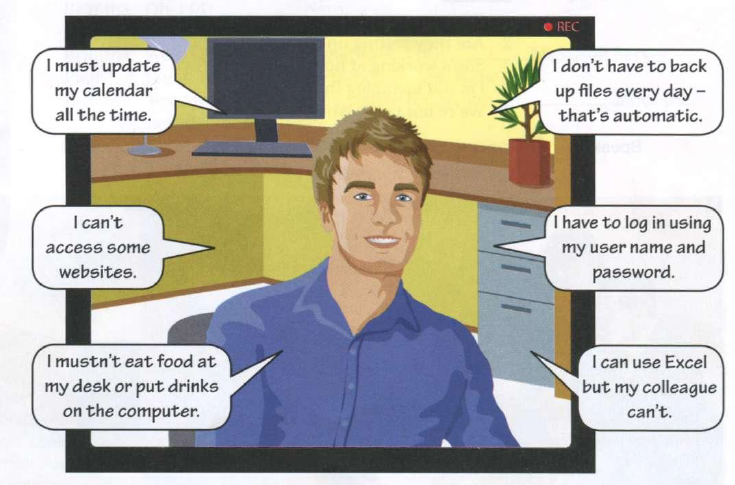
1) What must Ben do?
2) What can Ben do?
3) What cannot Ben do?
4) Can he open any website?
5) Why is it important to follow computer dos and don'ts?
№7. Answer the questions:
1. What is the Internet?
2. Why was the Internet designed?
3. What is the accurate number of internet users?
4. What is the most popular Internet service today?
5. What are other popular services available on the Internet?
6. What is the most important problem of the Internet?
7. Why is there no effective control in the Internet today?
8. Is there a commercial use of the network today?
№8. Match the meaning of the following English words with their Russian equivalents:
| 1. malicious code | a) контрольная сумма |
| 2. computer virus | b) вирусная подпись |
| 3. virus signature | c) «Троянский конь» |
| 4. macro virus | d) клавиатурный шпион |
| 5. trigger event | e) вредоносный код |
| 6. Trojan horse | f) вирус сектора загрузки |
| 7. checksum | g) макровирус |
| 8. key logger | h) переключающее (триггерное) событие |
| 9. antivirus software | i) компьютерный вирус |
| 10. boot sector virus | j) антивирусное программное обеспечение |
№9. Read and translate:
Privacy and Security
Privacy Settings - options to control who can see your profile and posts.
Block - to prevent someone from contacting you or seeing your content.
Report - to notify a platform about inappropriate or harmful content.
Two-Factor Authentication - an extra security step to verify your identity when logging in.
Password - a secret word or phrase used to secure your account.
Hacker - someone who illegally accesses accounts or systems.
Phishing - A scam where someone tries to steal your personal information through fake emails or websites.
Private Account - an account where only approved followers can see your posts.
Public Account - an account where anyone can see your posts.
Cyberbullying - bullying or harassment that happens online.

Вебинар для учителей
🎓 Свидетельство об участии ✨БЕСПЛАТНО!✨